free counters
Diberdayakan oleh Blogger.
Tampilkan postingan dengan label Linux. Tampilkan semua postingan

Jumat, 26 Juni 2015

Calibre Error Opening PDF File

by Unknown  |  in Slackware at  Jumat, Juni 26, 2015
Recently I'm trying to manage by ebooks collection by using Calibre. From my previous usage with Calibre and previous Slackware, I haven't a single problem when opening an ebook with pdf type. But now when I'm opening pdf ebook with Calibre it always open it with Karbon. Well, this really a big mess, how can I read an ebook with svg editor ?

That's turn out to be a problem with mime type association. With some googling I've found the solution for it:

First, find the default application when opening pdf file by using the following command:
 xdg-mime query default application/pdf  
with result:
 kde4-karbon.desktop  
From here I know that my system defaulting to karbon when opening a pdf file.

Second,  I must change it to my pdf application which is Okular with the following command:
 xdg-mime default okular.desktop application/pdf  
Now my Calibre happily open a pdf file with Okular.


sources of inspiration:
1.xdg-open
2.How to properly and easy configure `xdg-open` without any enviroment?

Selasa, 23 September 2014

Trying to learn blender

by Unknown  |  in Software at  Selasa, September 23, 2014
* Photorealistic rendering in Blender
Just call me genius, because I always try the hardest and the most difficult way to solving a problem. Frankly, this is won't be called a genius way though. It is just because I don't want to doing something with an ordinary way. I rarely do something in humble way, usually choose the grande way one.

For the moment, I trying to create a hotel presentation movie slide show with Blender. There is an easy way that is by using Adobe After Effect. Unfortunately, my computer is only run a Linux Slackware system with no Windows partition at all. Blender is the only solution right here now.

The deadline for the slide show is 1 days more. But my ability to use Blender is just as shallow as a finger dip. Nonetheless I always believe in my ability, eventhough almost of my believe is wrong...hahahaha... :D.

Whatever the circumstances, I'll go forward with Blendering my slide show. :D


* image taken from http://www.blender.org/features/

Senin, 22 September 2014

accessing and opening image from digital camera using digiKam

by Unknown  |  in Linux at  Senin, September 22, 2014
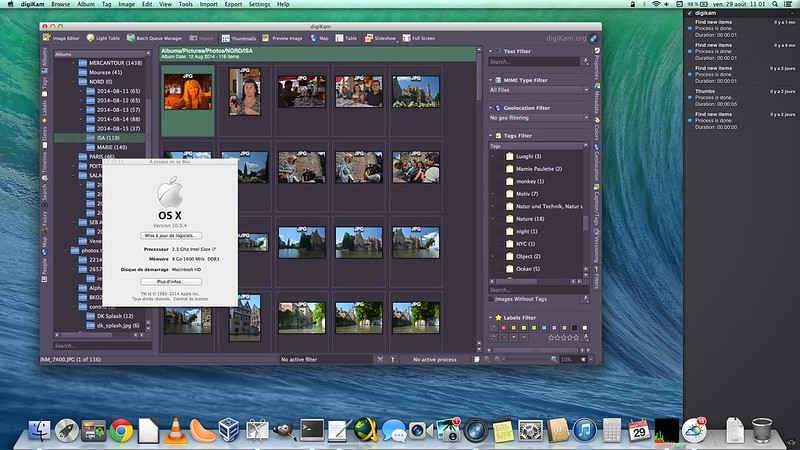
Picture 1.1 digiKam on MacOS

Don't know how to access and open image from digital camera? use digiKam. digiKam is an advanced digital photo management application for Linux, Windows, and Mac-OSX. We only need to click menu import->Cameras then select the camera to open our digital camera from digiKam like the Picture 1.2 below (I'm using digiKam 3.5.0 on Slackware64 14.1):
Picture 1.2 Import image from camera

Saving images from camera is easy as a pie, just click Download toolbar like the Picture 1.3 below. Select Download Selected or Download All:
Picture 1.3 Saving images to computer

Happy Imaging... :D ;)

How to properly moving home directory to new partition in linux Slackware

by Unknown  |  in Tutorial at  Senin, September 22, 2014
This tutorial has been tested with my Slackware64 14.1. This should be working with another linux distro with no or very small change.

To properly moving or migrating our home directory to a new dedicated partition, we can use these step below:

1. Create new partition.
2. Mount the new partition to a directory.
3. Copy all data from home partition to new partition (directory) with rsync command.
4. Move home partition to /oldhome.
5. Umount home and new partition directory then remount new partition directory.
6. Edit fstab by adding new entry pointing to the new partition.
7. Confirm that everything is okay, then delete /oldhome .


Let's explain the details.
1. Create new partition.
Provide a partition that will be our new home partition. For the rest of our tutorial, home partition will be /home. If your home partition differ than /home, change /home to your home partition. Our new home partition will be /dev/sda2. Change /dev/sda2 according to your new partition.

2. Mount the new partition to a directory.
Mount our new partition, /dev/sda2, to a directory. Here we use /homes as the directory. We use the following steps:
a. create /homes directory
 mkdir /homes  
b. mount /dev/sda2 to /homes
 mount /dev/sda2 /homes 
3. Copy all data from home partition to new partition (directory) with rsync command.
Copy all data from /home to /homes using rsync. W use rsync as it means that if it is interrupted for any reason, then you we restart it easily with very little cost. In another word, rsync is a safe copy. use rsync command below (Note that the trailing slash on /home and /homes/ is important) :
 rsync -avhW --no-compress --progress /home/ /homes/  
For another type of rsync, please read here.

4. Move home partition to /oldhome.
Move our /home partition to /oldhome. Use mv command like below:
 mv /home /oldhome  
5. Umount home and new partition directory then remount new partition directory.
Unmount /home and /homes directory. Then remount /dev/sda2 to /home like the following code (don't forget to create /home):
 umount /home  
 umount /homes
 mkdir /home
 mount /dev/sda2 /home
6. Edit fstab by adding new entry pointing to the new partition.
Add new entry to our fstab. here we add the following entry with the below line:
 /dev/sda2    /home      ext4    defaults     1  1  
7. Confirm that everything is okay, then delete /oldhome.
Confirm that everything is okay. Check if data is okay. Then reboot the system. After rebooting, recheck data then delete /oldhome. Delete /homes too because we don't need it anymore.

Now everything should be run okay.. :).


Proud to a Slacker... :D


reference : https://help.ubuntu.com/community/Partitioning/Home/Moving

Rabu, 03 September 2014

Alternatif Ubuntu

by Unknown  |  in Linux at  Rabu, September 03, 2014
Ubuntu Moisturising Shampoo

Ternyata Ubuntu bukan hanya sekadar sistem operasi Linux. Ubuntu juga bisa dipakai sebagai produk kecantikan, pelembab rambut, dan conditioner. Memang wajar sih, sesuai dengan arti dari Ubuntu yakni "Kemanusiaan kepada sesama".

Kalau Anda haus, mari minum Ubuntu... :D

Ubuntu Fairtrade Cola

Selasa, 13 Mei 2014

Package LXQt for Slackware64 14.1

by Unknown  |  in Qt at  Selasa, Mei 13, 2014
After 6 days ago ,7 May 2014), when LXQt is released I make a word for trying to build LXQt package for slackware. Fortunately, Eric Hameleers or Alien BOB has created his slackware package for this LXQt. Definitely fortunately, because If I try to fulfill my word, I must willing to spend my time trying and trying to configure and building the LXQt. As If I can do it now... :D

We can build the LXQt package from Alien slackbuilds. The total size of generated packages from the slackbuilds is only 7.9 MiB on my Slackware64 14.1. These are really quite small for a Desktop Environment.

Below here is the screenshot of my slackware64 14.1 with LXQt

LXQt

I'm quite fond of this DE, I'll stick with LXQt for now.

Senin, 12 Mei 2014

LXQt is release

by Unknown  |  in Software at  Senin, Mei 12, 2014
Finally, the First release of LXQt is now available from 7 May 2014.

LXQt
LXQt is the fruit from two good desktop environment, Razor-qt project and LXDE-Qt project.

The full release announcement can be read on the mailing list here.
Can wait to try it on my box, although there is not package for this LXQt. Maybe I should try to compile it, hmm.

Senin, 21 April 2014

Wrong advertising

by Unknown  |  in Linux at  Senin, April 21, 2014


Wrong target advertising show in depositfiles.com website.

Sorry, you lose one good prey because I use Linux not Windows...:D.

Kamis, 10 April 2014

Error Eclipse IDE with the Context Assist, "Intellisense"

by Unknown  |  in Software at  Kamis, April 10, 2014
I have a problem in my Eclipse IDE after installing some application on my Slackware64 14.1 Box yesterday. The Eclipse IDE is always crash when I highlighting a code for getting the Content Assist. At first, I thought the problem arise because I uninstalling the seamonkey and seamonkey-lib packages. But after I reinstalling these two packages, the problems still exist.

The error log can be seen here in pastebin.com.

After hours of tracking down the problem, I found some clues. Remembering that the problem arise after I uninstalling dan installing some applications, I try to uninstalling the all new installed applications and try to run the Eclipse IDE again. Voila, the Eclipse IDE back to normal...:D

Here the list of installed application before Eclipse having a problem:
libwebp, claws-mail, and webkitgtk

I really don't know the exact application which making the Eclipse error, but my intuition tell me that the problem is connected with the webkitgtk package.

Now I can back working on my android application development :D.

Selasa, 08 April 2014

Solution to fix error when trying to run google-chrome in Linux Slackware64 14.1

by Unknown  |  in Slackware at  Selasa, April 08, 2014
Google Chrome
After successing repackage Google Chrome debian package with Slackbuild script and installing it, I'm trying to first run the installed Google Chrome but no window being shown up on my laptop monitor. When I'm try to run it on terminal, there are some errors messages like here:
[22495:22495:0407/163940:ERROR:shared_memory_posix.cc(226)] Creating shared memory in /dev/shm/.com.google.Chrome.8s1qNY failed: Permission denied
[22495:22495:0407/163940:ERROR:shared_memory_posix.cc(229)] Unable to access(W_OK|X_OK) /dev/shm: Permission denied
[22495:22495:0407/163940:FATAL:shared_memory_posix.cc(231)] This is frequently caused by incorrect permissions on /dev/shm.  Try 'sudo chmod 1777 /dev/shm' to fix.
The error will be fix and we can run the Google Chrome by  running sudo chmod 1777 /dev/shm. But this solution is just temporay. After restarting the Box, the same problem will reappear.

To permanently fix these errors, we must add a line in /etc/fstab with this text:
tmpfs  /dev/shm  tmpfs   defaults    0     0
Then, restart the Box.

Now, the problem is solved and we can surfing with the Google Chrome :).

Konfigurasi Claws Mail untuk Gmail

by Unknown  |  in Linux at  Selasa, April 08, 2014
Claws Mail

Setelah kemarin menguninstall Seamonkey dan Thunderbird karena ketidaksukaan saya terhadap keberpihakan Mozilla pada kaum Lesbian dan Gay , hari ini saya mencari pengganti untuk Thunderbird yang biasa saya gunakan untuk email client. Claws Mail lah yang akhirnya menjadi solusinya.

Kekurangan saat awal menggunakan Claws Mail adalah tidak adanya wizard untuk pengaturan koneksi ke penyedia email free seperti Gmail dan Yahoo Mail. Jadi terpaksa saya harus mengisi pengaturannya secara manual.

Karena saya lebih sering menggunakan Gmail, jadi saat ini saya cuma berusaha mencari pengaturan Gmail. Untuk pengaturannya dapat dilakukan dengan beberapa langkah berikut:
  1. Jalankan Claws Mail
  2. Buat mail account baru melalui menu Configuration -> Create New Account...
  3. Pada tampilan "Preferences for new account", buka menu Basic di sebelah kanan. Isikan Full Name dengan nama. Isi Mail Address dengan alamat email. Di bagian Server Information, pilih Protocol IMAP4. Isi Server for receiving dengan imap.gmail.com. Isi SMTP server (send) dengan smtp.gmail.com.
  4. Pilih menu SSL, lalu pilih di POP3 Use SSL for POP3 connection. Pilih di Send (SMTP) Use SSL for SMTP connection.
  5. Pilih menu Advanced, isikan nilai SMTP port dengan 587 dan IMAP4 port dengan 993.
  6. Klik Ok.

Voila, selesai...:D

Jumat, 04 April 2014

Get Windows Computer Name From Linux

by Unknown  |  in Networking at  Jumat, April 04, 2014
As I am using vnc system (with tigervnc and tightvnc) to control a couple of windows machines in my office, I need to know the IP Address of computer I want to control. In windows, we can simply pinging the windows computer name with ping <computer name> command like in picture 1.1 where I ping computer with computer name 'vera'.

picture 1.1 ping computer 'vera'

But in Linux, we can't simply ping the computer name. It won't work (picture 1.2).


There is a simple way to get the computer name IP Address from Linux by using samba command. Use nmblookup command to get the IP Address from Windows Computer.

To get the IP Address just type:
nmblookup <computer_name>
<computer_name> is the Windows Computer Name.

look at the Picture 1.3 for nmblookup action.

Picture 1.3 nmblookup

Likewise, to get the Computer Name from Windows Computer IP Address we can use nmblookup -A <ip_address> like in Picture 1.4.

Picture 1.4 nmblookup with IP Address

We also can get All computer IP Address in our LAN with the nmblookup and simple for loop. With this simple code in terminal:
 for i in {1..200} ; do nmblookup -A 192.168.1.$i; done
Here we enumerate all Computer Name from address 192.168.1.1 to 192.168.1.200 


That is. Simple solution :).


Sabtu, 22 Maret 2014

Install octave on Slackware64 14.1

by Unknown  |  in Software at  Sabtu, Maret 22, 2014
After several days failed trying to build and install octave with error "can not found tex package" eventhough I've tetex on my slackware, Finally I've found a solution.

Here is the step:
1. Remove tetex and tetex-doc packages from Slackware
2. Download and install texlive from Slackbuilds.org. Don't forget the require packages; texi2html and libsigsegv.
3. Install octave.
4. Finish


Now I can resume my free machine learning lesson...:D

Rabu, 19 Maret 2014

Membuat tampilan Emacs transparan

by Unknown  |  in Tutorial at  Rabu, Maret 19, 2014
Emacs merupakan teks editor yang handal di lingkungan sistem operasi Linux dan Unix. Kehandalannya ini dikarenakan adanya kemampuan untuk diskutomasi berdasarkan keinginan user.
Nah, dalam hal ini saya sebagai user ingin membuat tampilan GUI emacs transparan sehingga saya dapat mengetik teks sambil internetan...:D

Untuk membuat tampilan Emacs transparan, dapat dilakukan dengan menambahkan ke file ~/.emacs beberapa baris berikut ini:
(defun set-frame-alpha (arg &optional active)
  (interactive "nEnter alpha value (1-100): \np")
  (let* ((elt (assoc 'alpha default-frame-alist))
         (old (frame-parameter nil 'alpha))
         (new (cond ((atom old)     `(,arg ,arg))
                    ((eql 1 active) `(,arg ,(cadr old)))
                    (t              `(,(car old) ,arg)))))
    (if elt (setcdr elt new) (push `(alpha ,@new) default-frame-alist))
    (set-frame-parameter nil 'alpha new)))
(global-set-key (kbd "C-c t") 'set-frame-alpha)

 Untuk mengaktifkannya, saat emacs telah dijalankan ketikkan perintah C-c t untuk bagian frame yang lagi aktif, dan  perintah C-u C-c t untuk frame yang tidak aktif. Lalu masukkan nilainya, diantara 0 - 100. 0 berarti nilai transparan total, sedangkan 100 berarti opaque atau tidak transparan.


Ini contoh screenshotnya pada frame yang aktif:


Saat menekan C-c t
Saat menekan perintah C-c t akan muncul enter alpha value di bagian bawah


Saat nilai 80 diberikan sebagai nilai alpha value


referensi: http://stackoverflow.com/questions/2935520/how-to-set-a-key-binding-to-make-emacs-as-transparent-opaque-as-i-want

Selasa, 04 Maret 2014

Trying to configure clementine with control button in conky

by Unknown  |  in Slackware at  Selasa, Maret 04, 2014
Currently I'm still trying to create control button for clementine in conky.  I've collect every information for it. Here the details of the necessary things needed:

1. Conky itself
2. Conky documentation (really need this)
3. Clementine package
4. Lua package
5. Tutorial of conky
6. Interactive conky button
7. conky clementine (for displaying current play of clementine in conky)
8. clementine control script  (look at clementine.lua)
9. Conky Pitstop (Gallery of beautiful conky setting)
10. Conky / Music Art (maybe we should read this),
11. Tutorial to remotely control clementine with dbus
12. xdotool (this is the brain behind interactive conky)

In case something bad happens to the links, I've made a backup for them at my google drive, here.

Initially, we must install conky, clementine, and lua in our system. Because I use slackware64 14.1, I download those three from slackbuilds.org. Remember that we must enable lua when building conky (read at http://slackbuilds.org/repository/14.1/system/conky/). Btw, don't forget to install any requirement for clementine.

Enough for today.... :)

Jumat, 28 Februari 2014

Memulai menggunakan Emacs

by Unknown  |  in pemrograman at  Jumat, Februari 28, 2014
Setelah menunda-nunda menggunakan emacs untuk beberapa lama (cuma 7 tahun, wkwkwkw), akhirnya saya memaksakan diri untuk memulai memakai emacs lagi.
Untuk memastikan kali ini tidak ada penundaan lagi, saya mengatur razorqt di slackware 14.1 agar selalu membuka file text menggunakan emacs. Dan untuk lebih memastikan lebih jauh lagi, saya membuang semua file editor yang ada; Kwrite, kate, ed, dan sebagainya. Terkecuali vim, karena saat mengedit konfigurasi di init 1 jauh lebih baik menggunakan vim.

Sebagai alat bantu, beberapa ebook ini sepertinya cocok untuk dipakai:

1. GNU Emacs reference cards
2. GNU Emacs Manual


Sudah lengkap sepertinya.....

Ok, saatnya saya memulai perjalanan ini.... :D

Sabtu, 16 Juni 2012

Skype untuk Linux, Skype 4.0

by Unknown  |  in Software at  Sabtu, Juni 16, 2012

Skype mengumumkan pada tanggal 14 Juni bahwa Skype untuk Linux, Skype 4.0 (stable release), untuk sistem operasi Linux telah dirilis dan tersedia untuk download.

Setelah bertahun-tahun dalam pembangunan, Skype hadir dengan rilis stabil utama dari perangkat lunak luar biasa, Skype 4.0, mengusung banyak fitur baru yang sebelumnya sudah ada pada platform lain yang didukungnya.

Highlights dari Skype 4.0:

· Jendela unifikasi baru yakni Conversation View, yang memungkinkan pengguna untuk dengan mudah melacak obrolan mereka (tampilan lama masih dapat diaktifkan dari pilihan Chat);
· Call View jenis baru;
· Kualitas panggilan yang lebih baik;
· Peningkatan kualitas video panggilan;
· Dukungan untuk banyak Webcam;
· Sinkronisasi chatting lebih baik;
· Ikon emoticon dan kehadiran baru;
· Kemampuan untuk menyimpan dan melihat nomor telepon pada profil kontak;
· Pemuatan sejarah chatting yang lebih cepat;
· Dukungan untuk bahasa Ceko dan Norwegia;
· Perbaikan stabilitas keseluruhan.

Silahkan download dan coba Skype untuk Linux.

Catatan: Saat pertama menjalankan Skype 4.0 akan memakan waktu beberapa menit (tergantung seberang panjang history chat anda). Tolong jangan tutup Skype saat itu. Setelah itu, menjalankan program selanjutnya akan lebih cepat.